

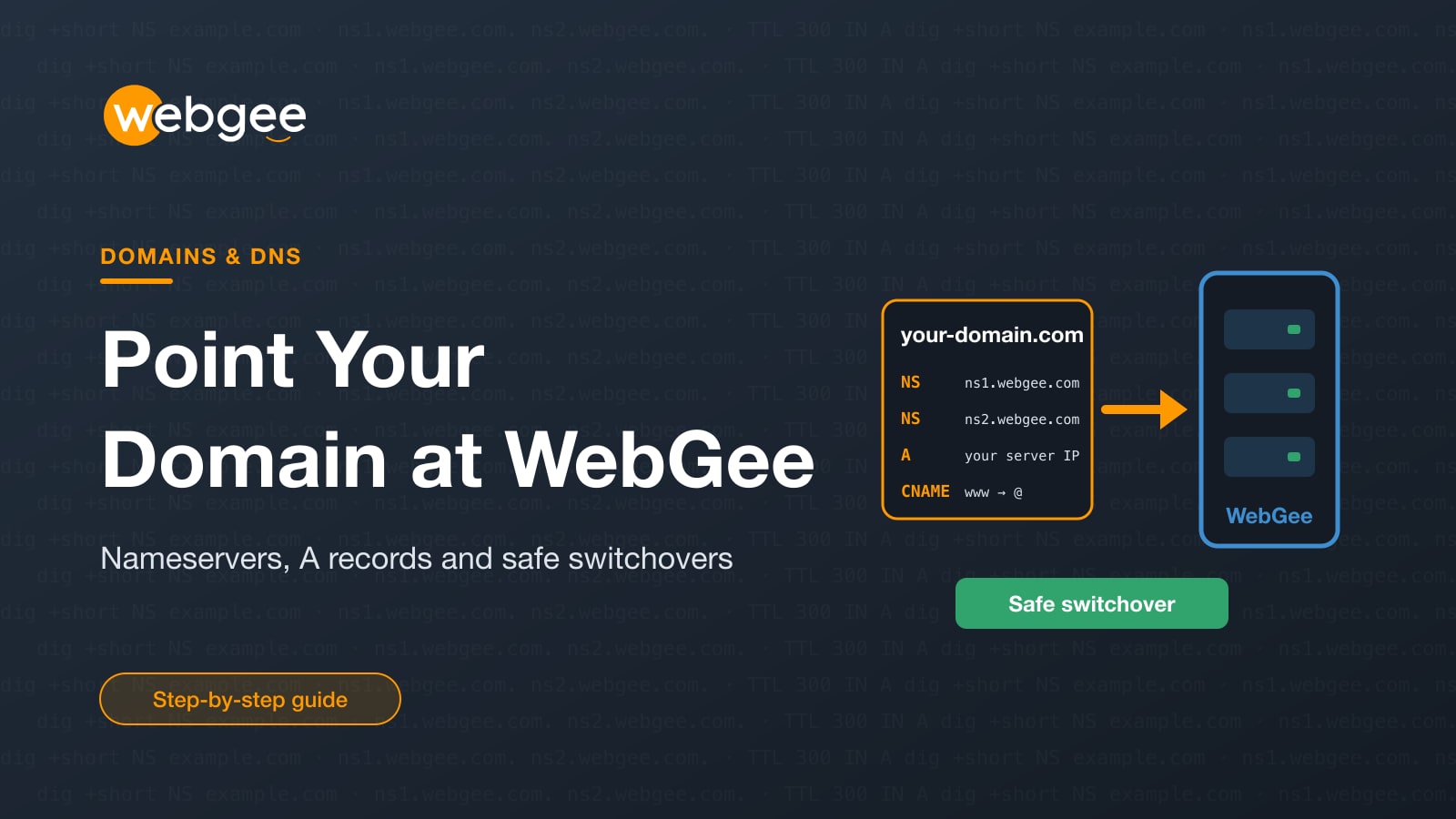
Your hosting is ready, but visitors only reach it once your domain points at it. There are two ways to do that, and choosing the wrong one, or doing both, is behind a large share of "my DNS change didn't work" problems.
This guide explains when to change nameservers and when to use an A record, how to check what your domain uses today, and how to switch without downtime.
Key takeaways
- Use the nameservers in your welcome email; they are specific to your server and take precedence over any generic list.
- Change nameservers where the domain is registered, not where it is hosted.
- If your DNS is at Cloudflare or another provider, point an A record at your server's IP instead of changing nameservers, and never do both.
- Run dig +short NS first: if the domain is not on WebGee's nameservers, cPanel Zone Editor changes have no effect.
- Preview the site with the Website Preview plugin in cPanel before switching DNS, so the change brings no surprises.
Before you start
- Find your WebGee welcome email: it lists your nameservers and your server's IP address.
- Know where the domain is registered, as that is where nameservers are changed.
- Know whether your DNS is hosted with WebGee, Cloudflare or your registrar.
- Have the site's files or a migrated copy already on your WebGee account.
Nameservers or an A record?
The choice depends on who hosts your DNS.
- Nameservers hand the whole DNS zone to WebGee. cPanel's Zone Editor becomes authoritative, and you manage every record from there. This is the usual choice when WebGee hosts your site and email.
- An
Arecord keeps DNS where it is, for example at Cloudflare or your registrar, and points just the website at your server's IP address. Your IP is shown in your welcome email and in the client area.
Do not do both. A domain using Cloudflare's nameservers ignores WebGee's DNS zone entirely, so edits in cPanel's Zone Editor do nothing.
Use the right nameservers
The common WebGee cPanel nameservers are ns1.webgee.com and ns2.webgee.com. Some accounts are issued ns1.primens.one and ns2.primens.one instead. Both pairs are valid.
Your welcome email takes precedence Nameservers are specific to the server your account is on, and accounts on different servers do not all use the same pair. Use the pair in your welcome email, or confirm it in the client area under your service's details.
Change nameservers wherever the domain is registered, not where it is hosted:
- Registered with WebGee: in the client area, go to Domains → My Domains → Nameservers.
- Registered elsewhere: change them at that registrar.
Propagation typically takes a few hours and can take up to 48. See Which nameservers to use for the full reference.
Check which nameservers your domain uses
This is the first check for almost any DNS problem. From a terminal:
dig +short NS example.comOn Windows, run nslookup -type=ns example.com. In a browser, use a public WHOIS lookup and read the Name Servers field.
Read the result like this:
ns1.webgee.com/ns2.webgee.comorns1.primens.one/ns2.primens.one: WebGee DNS. Edit records in cPanel's Zone Editor.*.ns.cloudflare.com: Cloudflare DNS. Edit records at Cloudflare, not in cPanel.- Your registrar's nameservers: edit records at the registrar.
WHOIS shows what is registered at the registry; dig shows what is currently resolving, which may still be cached. During a change the two can disagree for a while. That is propagation.
To see what individual records return, and to bypass your local cache by querying Cloudflare's resolver directly, use:
dig +short example.com          # A record
dig +short MX example.com       # mail
dig +short TXT example.com      # SPF, DMARC, verification
dig @1.1.1.1 +short example.com # bypass your local cache
More detail is in Check which nameservers a domain uses.
Preview your site before you switch
The safe way to move a site is to build it on WebGee, confirm it works, then change DNS. WebGee provides a Website Preview plugin in cPanel for exactly this.
- In cPanel, open Website Preview.
- Select the domain you want to preview.
- Open the preview address it gives you.
The preview runs on a subdomain of the server hostname and is served exactly as it will be once DNS points here, so rewrite rules, SSL and WordPress all behave normally.
Avoid cPanel's built-in http://server-ip/~username preview. It breaks .htaccess rewrites, needs WordPress's Site URL changed to display at all, cannot use SSL, and exposes your server's IP address in any link you share. See Preview your site before pointing DNS.
Request a certificate once DNS resolves AutoSSL validates by fetching a file from your domain, so it can only issue once the domain resolves to your account. After the switch, include the domain in SSL/TLS Status and run AutoSSL.
The steps are in Install a free SSL certificate.
Point the website at an external service
If your site moves to Wix, Squarespace, Shopify or Webflow while email stays on WebGee, keep WebGee's nameservers and change only the website records. Get the target values from the external service first, usually an IP address for an A record or a hostname for a CNAME.
- In cPanel, open Zone Editor under Domains.
- Select Manage beside your domain.
- Edit the
Arecord whose name is the domain itself to the IP address the service gave you. - Repeat for the
wwwrecord, usually aCNAMEto the same target.
Leave the MX records, the mail A record and the TXT records alone, or your email goes down with the website. If a service offers both an A record and a CNAME for the bare domain, take the A record option: a CNAME on the apex conflicts with the MX records.
Afterwards, reach cPanel through the server hostname in your welcome email and webmail at webmail.webgee.com. Then confirm both halves of the change:
dig +short example.com        # should return the external service
dig +short MX example.com     # should still return WebGee
The second check is the one people forget, and the failure is silent: mail simply stops arriving. See Point a domain at an external web service.
Using Cloudflare
Putting your site behind Cloudflare means switching to Cloudflare's nameservers. Before you switch, compare the records Cloudflare imports against cPanel → Zone Editor, paying particular attention to MX records. Keep MX records and the mail. hostname set to DNS only, and set Cloudflare's SSL mode to Full (strict). See Put your site behind Cloudflare.
Resellers: branded nameservers
Reseller accounts can run nameservers on their own domain, such as ns1.example.com, at no charge. Register glue records at your registrar first, add matching A records, then set the nameservers in WHM under Basic WebHost Manager Setup. Sites that load for some visitors but not others are the signature of missing or mismatched glue records. See Create custom nameservers.
Registering a new domain
A domain registered with WebGee uses WebGee's default nameservers. Watch for the registrant verification email afterwards: an unconfirmed domain is suspended and stops resolving, which looks exactly like a DNS fault. See Register a domain.
Frequently asked questions
How long does a nameserver change take?
Propagation typically takes a few hours and can take up to 48. Run dig +short NS example.com to see whether the new nameservers are being returned.
Why do my changes in cPanel Zone Editor have no effect?
The domain is almost certainly not using WebGee's nameservers. If it points at Cloudflare or your registrar, edit the records there instead.
Can I move my website to Wix or Squarespace and keep email on WebGee?
Yes. In cPanel Zone Editor, change only the A record for the bare domain and the www record to the values the external service gives you, and leave the MX records, the mail A record and TXT records untouched.
Can I use my own branded nameservers?
On reseller accounts, yes, at no charge. You register glue records at your registrar, add matching A records, and set the nameservers in WHM under Basic WebHost Manager Setup.
