

Every cloud server comes with a decision that is easy to skip at checkout: who looks after the machine once it is running. On an unmanaged server, that is you. On a managed one, part of that job moves to someone else.
Neither is better in the abstract. Unmanaged gives you full control and suits people who already run Linux servers. Managed suits servers that matter to the business but have nobody on the team who owns them. This guide explains what each option actually covers at WebGee, what you can do yourself from the Cloud Console, and how to decide which one fits you.
Key takeaways
- WebGee cloud servers are unmanaged by default: WebGee runs the platform, and everything inside the server is yours.
- The managed add-on adds OS updates, security hardening, 24/7 server support, optional monitoring and up to 3 hours of help a month.
- On KVM you get your own kernel, your own firewall and dedicated memory and disk.
- The Cloud Console lets you rebuild, rescue, back up, set reverse DNS and share access yourself.
- Choose managed if the server matters and nobody on your side will keep it patched.
Short version WebGee cloud servers are unmanaged by default: WebGee looks after the platform, network and Cloud Console, and everything inside the server is yours. Choose managed if the server matters and nobody on your side will keep it patched. Choose unmanaged if someone will.
What "unmanaged" really means
WebGee cloud servers are unmanaged by default, and that applies to all VPS and dedicated servers. The split of responsibilities is simple:
- WebGee provides the platform: network uptime and connectivity, the physical and virtualisation infrastructure, and the Cloud Console you use for rebuilds, backups, console access and networking.
- Everything inside the server is yours: the operating system, its updates, security hardening, the software you install and how it is configured.
Support on an unmanaged server covers the VPS platform and network issues outside your server. It does not include administering what runs on it. WebGee also does not access an unmanaged server unless you explicitly ask. If you want the support team to look at something, you can temporarily install a WebGee support SSH key and remove it when the ticket is closed, so you never have to share a root password. The steps are in Grant WebGee support access to your server.
Why the control is real: KVM
WebGee cloud servers run on KVM, a full hardware virtualisation hypervisor. In practice that means:
- Your own kernel. You can load modules, set kernel parameters and boot a custom kernel.
- Your own firewall.
iptablesandnftableswork normally. - Real isolation. Memory and disk are allocated to your server, so a busy neighbour does not eat into them.
- Anything runs. Docker, swap, VPN software, custom filesystems and alternative kernels all work.
The flip side is that kernel updates are yours to apply, and they only take effect after a reboot. That is the heart of the unmanaged trade-off: full control, full responsibility.
The most common failure is quiet On an unmanaged server, nobody applies security updates but you. The usual problem is not a dramatic outage; it is a server nobody has updated for two years. If nobody on your side will patch it, managed is not a convenience, it is a requirement.
What the managed add-on includes
Management adds administration of the server itself, not just the platform underneath it. According to the server management documentation, it includes:
- 24/7/365 technical support for the server, not only the platform.
- Operating system updates applied for you.
- Security hardening.
- Optional proactive monitoring of services.
- Up to 3 hours of technical assistance or consultation each month.
The three-hour allowance covers ordinary administration and advice. Bigger pieces of work, such as a migration or a substantial build, are quoted separately. Management services are offered for Linux cloud servers only. Current pricing for the managed add-on is shown on the order page.
It is worth being clear about what managed does not change. A few jobs stay yours either way, and they are the ones that cause the most trouble when forgotten:
Do these yourself, managed or not
- Configure backups, and keep a copy of anything critical off the server.
- Set reverse DNS before the server sends any email.
- Use SSH keys rather than passwords for root access.
Who each option suits
Unmanaged is a good fit if
- You, or someone on your team, is comfortable with Linux administration and will actually keep the server patched.
- You want a specific stack, a custom kernel, containers or a control panel you maintain yourself.
- You are building and testing, and rebuilding the server from scratch is a normal part of your week.
Managed is a good fit if
- The server runs something the business depends on, such as a client site, a shop or an internal app.
- Nobody on your side owns the server day to day, or the person who set it up has moved on.
- You want someone else applying OS updates and hardening, with a few hours a month of expert help on tap.
A useful test: ask who will apply the next security update, and when. If there is a name and a habit, unmanaged works. If the answer is "probably me, at some point", managed is the safer choice.
When you need more than server management
Server management looks after the machine. Some teams need help with everything around it: CI/CD pipelines, Terraform, Kubernetes and on-call incident response. That is what DevOps as a Service covers, with plans that range from pipeline and monitoring setup up to a dedicated DevOps and SRE team. It is a different scale of service, aimed at teams shipping software rather than a single site.
Quick start: how fast a server is deployed
Whichever option you choose, getting a server running is the same and takes a couple of minutes. The website promises deployment in as little as 20 seconds, and the documentation says installation usually completes in under 20 seconds.
- In the WebGee client area, go to Services, select your cloud server and choose Open Cloud Console.
- Set the server name, a fully qualified hostname such as
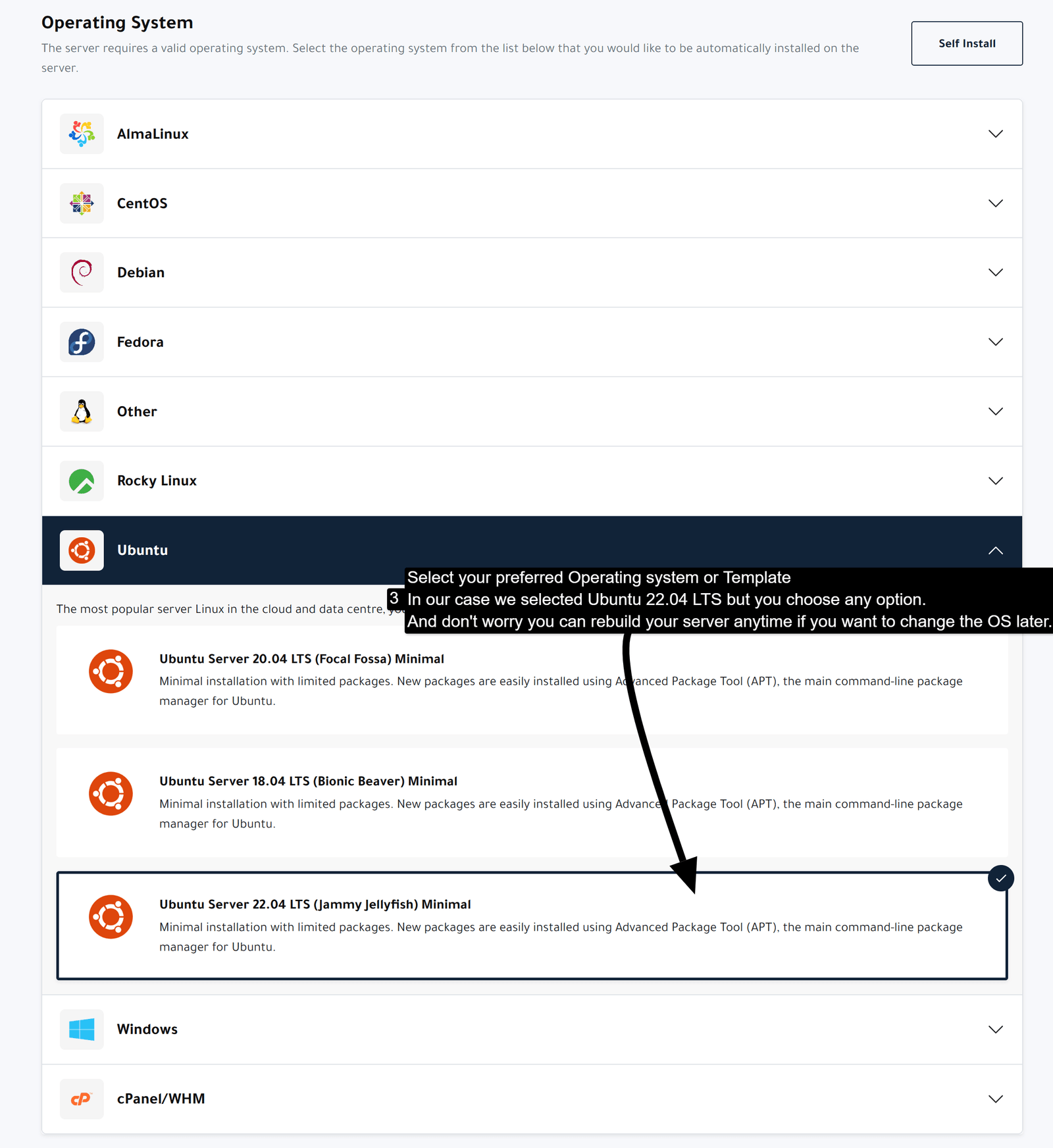
server1.example.com, and the timezone. - Pick an operating system template.
- Optionally attach an SSH key, then select Install and confirm.
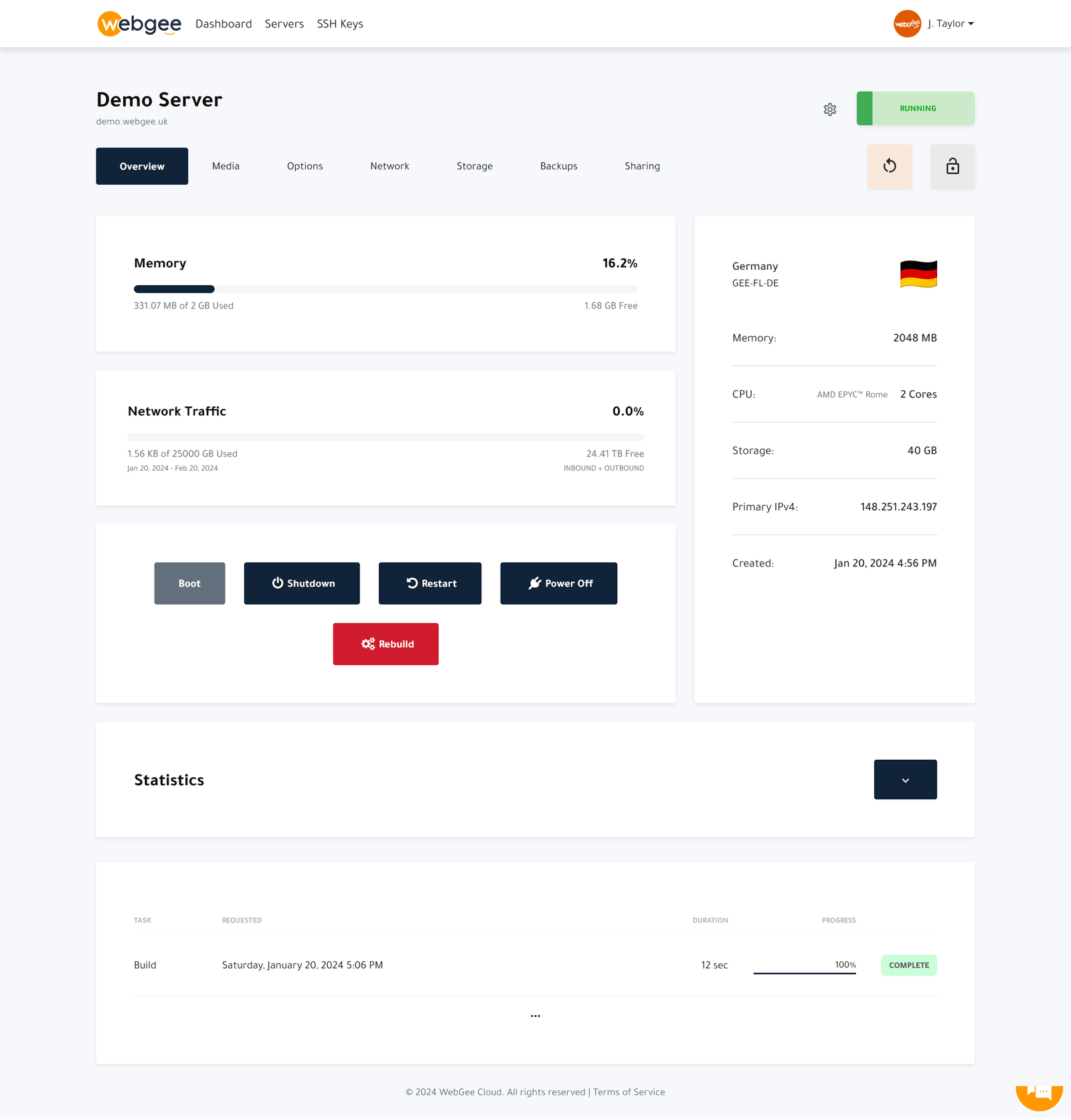
Once it is built, connect with ssh root@your-server-ip. If you attached a key you go straight in; otherwise the root password is emailed to you, and you should change it on first login.
This article stays at the overview level. For the full hands-on walkthrough, including first logins, keys, backups and DNS, read Your First Hour With a WebGee Cloud Server.
What you control yourself in the Cloud Console
Unmanaged does not mean on your own with a blank terminal. The Cloud Console gives you the tools to build, recover and protect the server without opening a ticket. Here is what each part is for.
OS templates and rebuilds
You can rebuild the server at any time from a list of templates: AlmaLinux, Rocky Linux and CentOS, Debian and Ubuntu, Fedora, Alpine Linux and FreeBSD, plus images with a hosting control panel preinstalled. A rebuild erases the primary disk, so take a backup first. Firewall rules do not survive a rebuild either, so reapply them afterwards. Details are in Rebuild your server.
If you prefer a free panel you maintain yourself, the docs have install guides for aaPanel, CyberPanel and CentOS Web Panel. All three are unmanaged installations: the panel, its updates and its security are yours.
Rescue mode and VNC
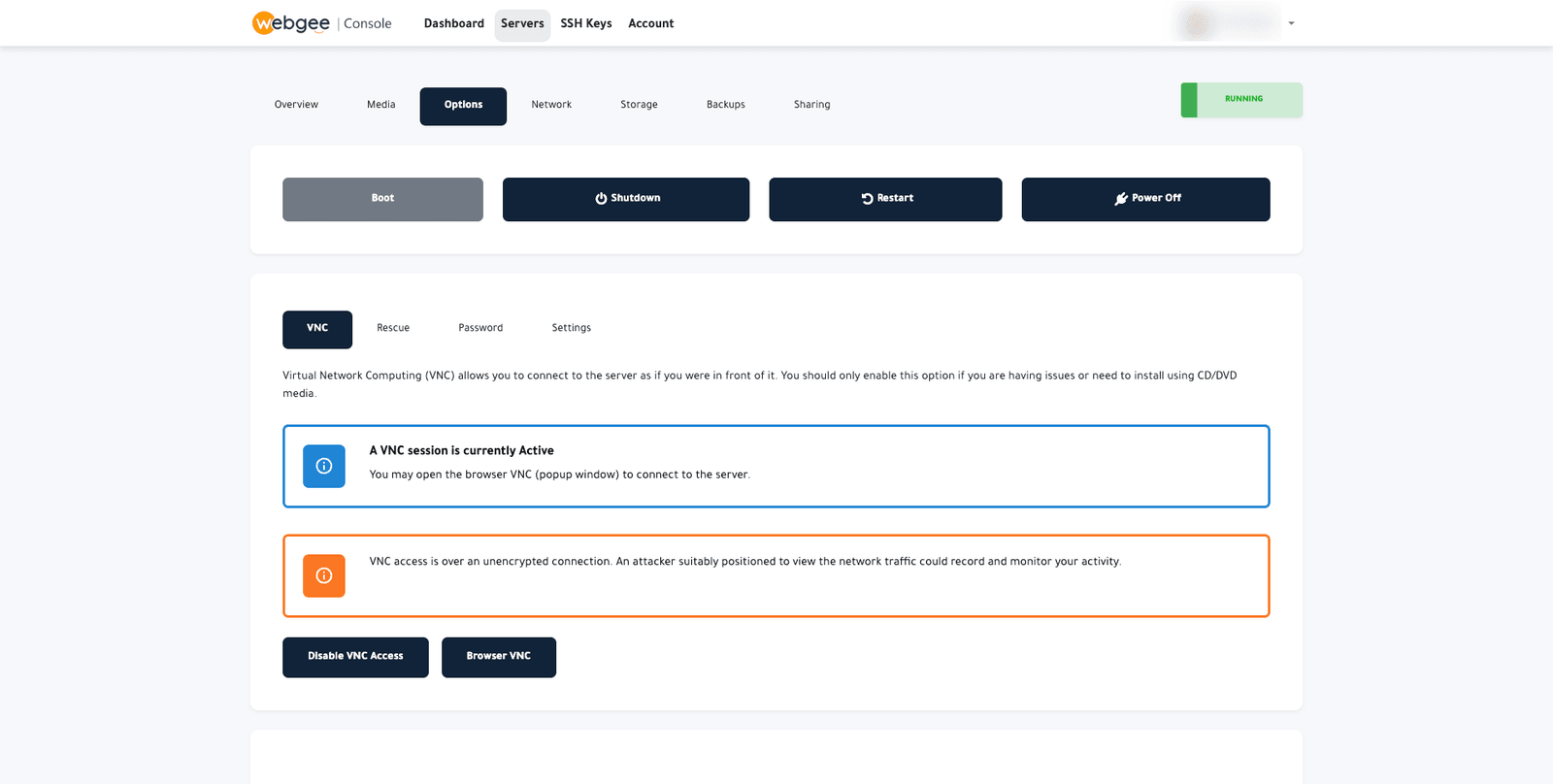
When SSH stops answering, Options has four tools. VNC gives you the server's screen and keyboard in a browser window, even when networking or SSH is broken. Rescue boots a small recovery environment with your disk available to mount, for a broken fstab or a failed kernel update. Password resets the root password, and Settings holds server-level options such as the boot loader.
Boot media
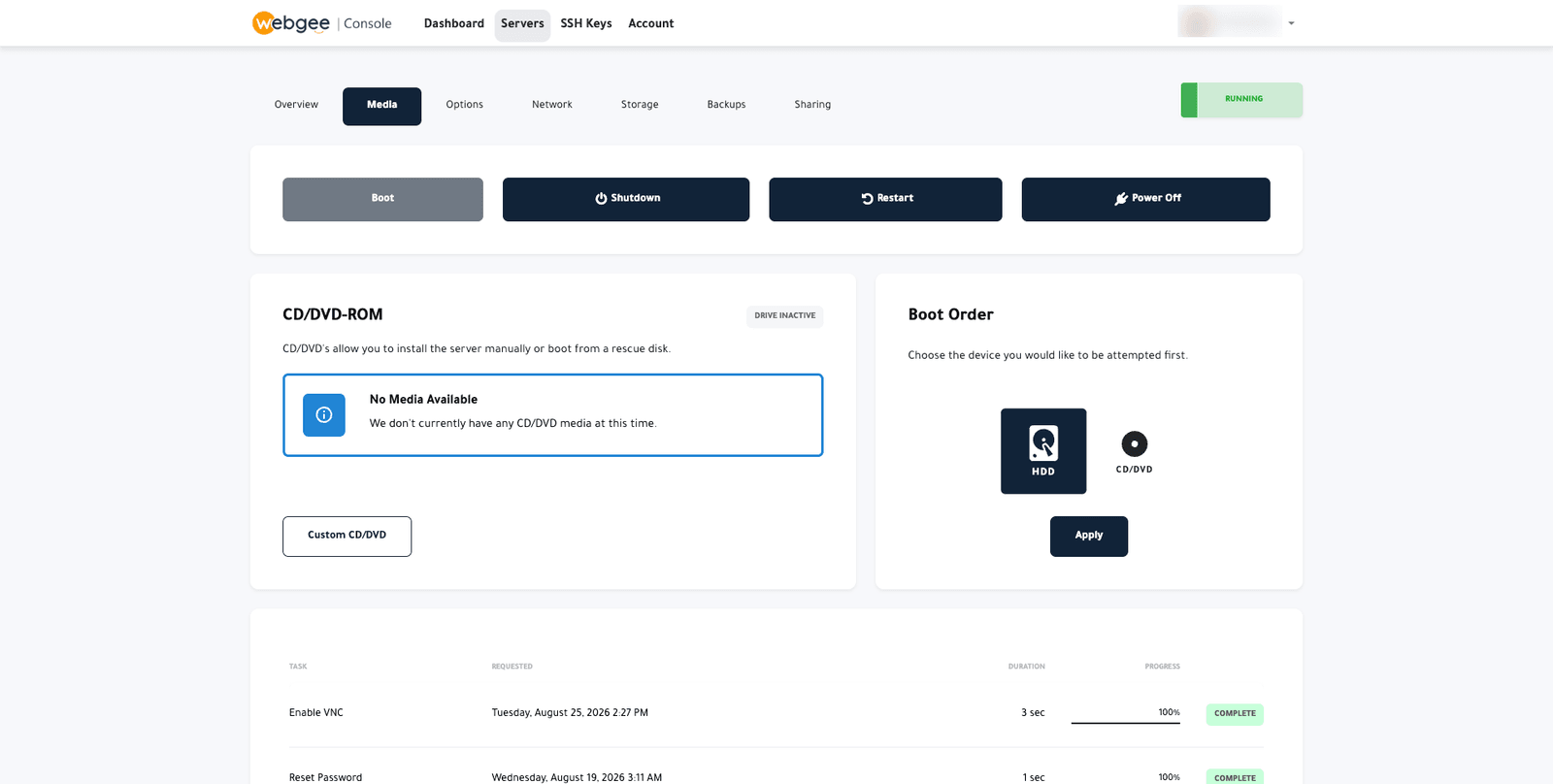
For an operating system that is not offered as a template, the Media tab lets you attach a CD/DVD image, including a custom one by URL, and set the boot order between HDD and CD/DVD. You drive the installer over VNC. Remember to set the boot order back to HDD afterwards, or the server boots the installer again on the next restart. See Boot media and boot order.
Backups with slots and a schedule
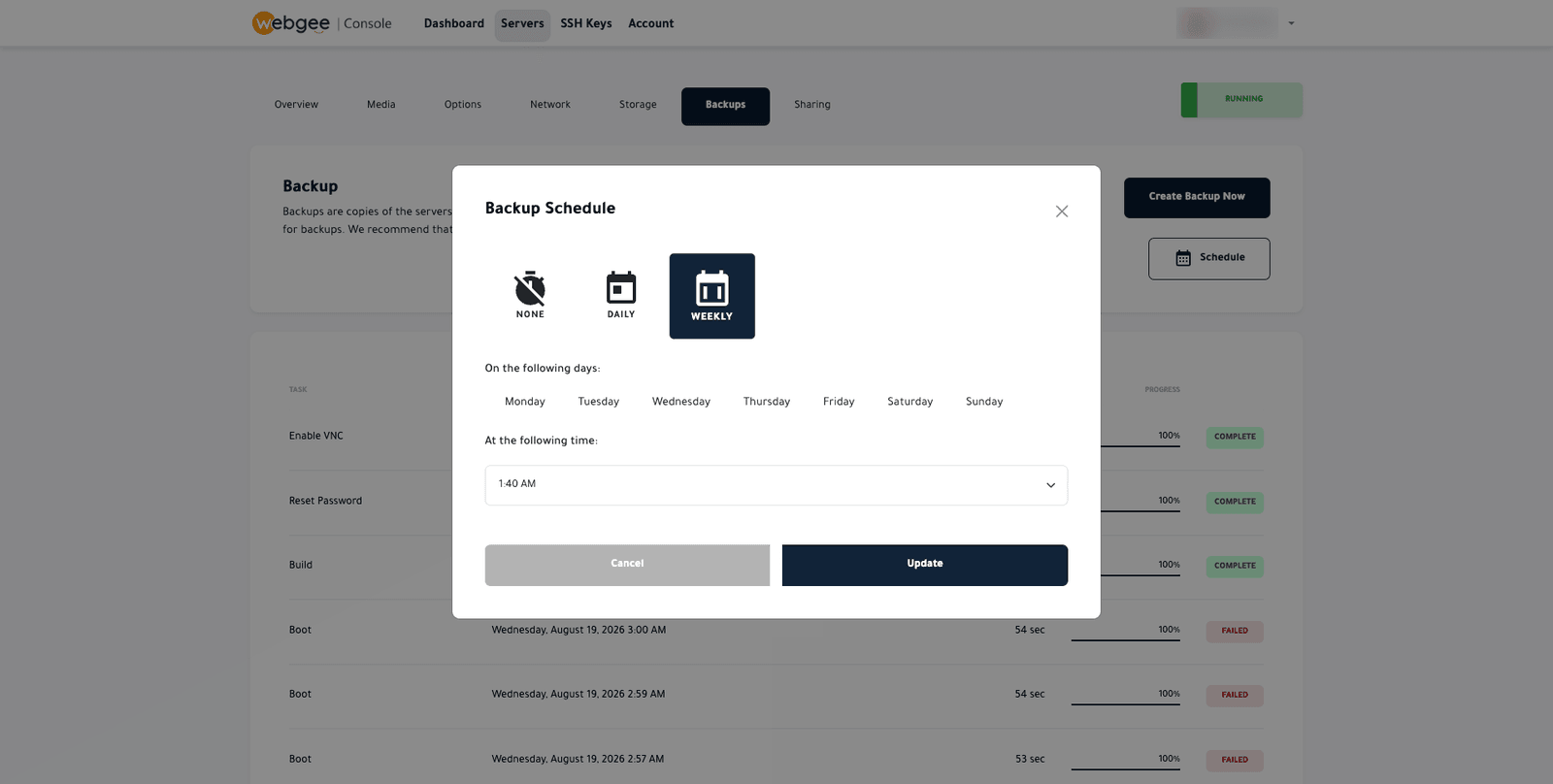
The Backups tab copies the server's primary disk, either on demand with Create Backup Now or on a daily or weekly schedule at a time you choose. You have a fixed number of backup slots, and once they are all used the oldest is replaced. Two things to know: additional attached storage is not included, and a backup taken while the server is running can capture a database mid-write, so power down first for anything you really intend to restore.
These backups protect you against a bad change or a failed upgrade. For anything you cannot afford to lose, keep your own copy somewhere else too. The full reference is Back up your server.
SSH keys
Store public keys under SSH Keys and attach them when you build or rebuild a server. The key is installed for root during the build and no password is emailed. Each stored key can be enabled or disabled, shared, renamed or deleted. Generate your key on your own machine where possible, so the private half never travels:
ssh-keygen -t ed25519 -C "[email protected]"
cat ~/.ssh/id_ed25519.pub   # paste this public key into the Console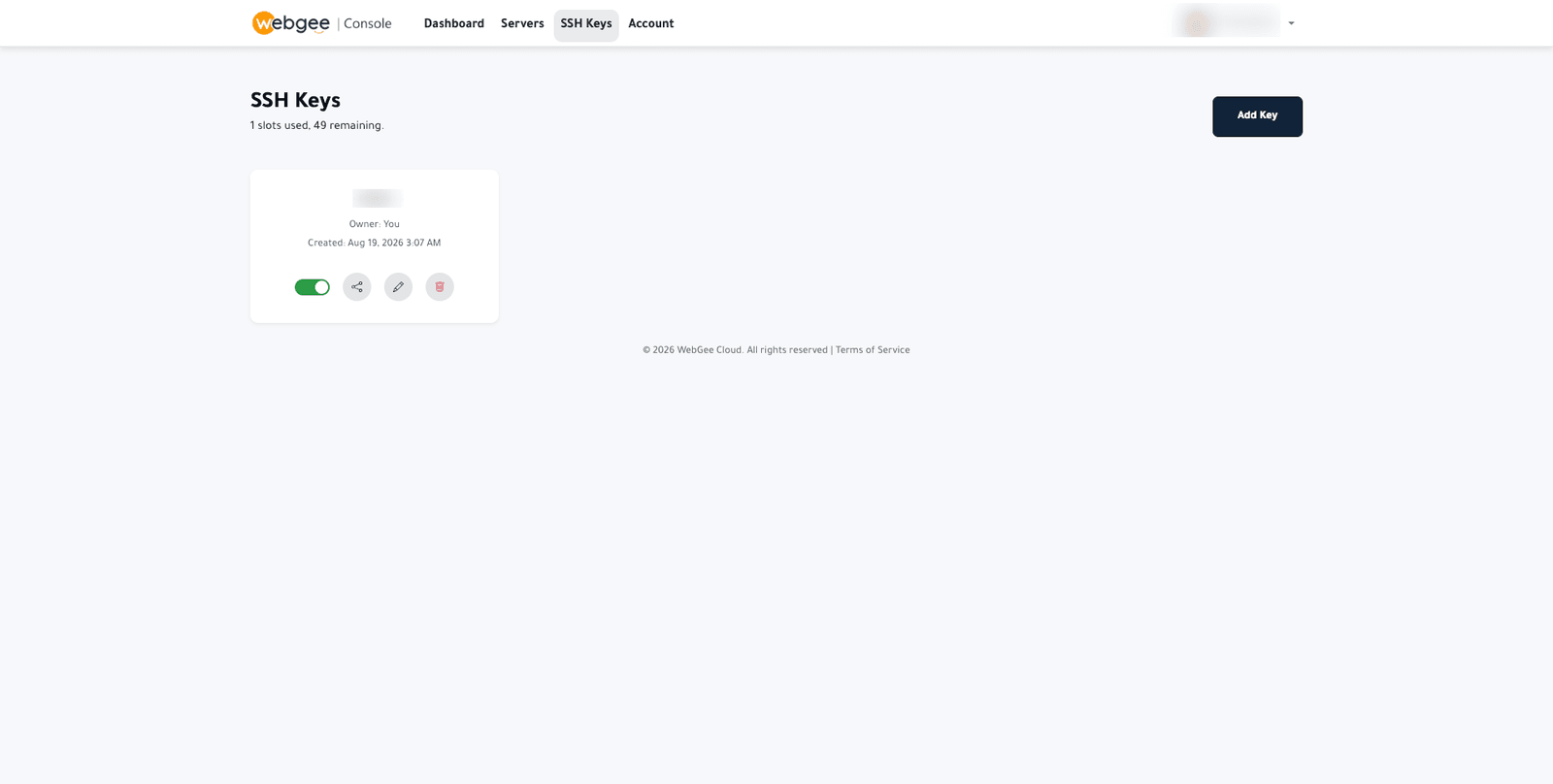
Networking and reverse DNS
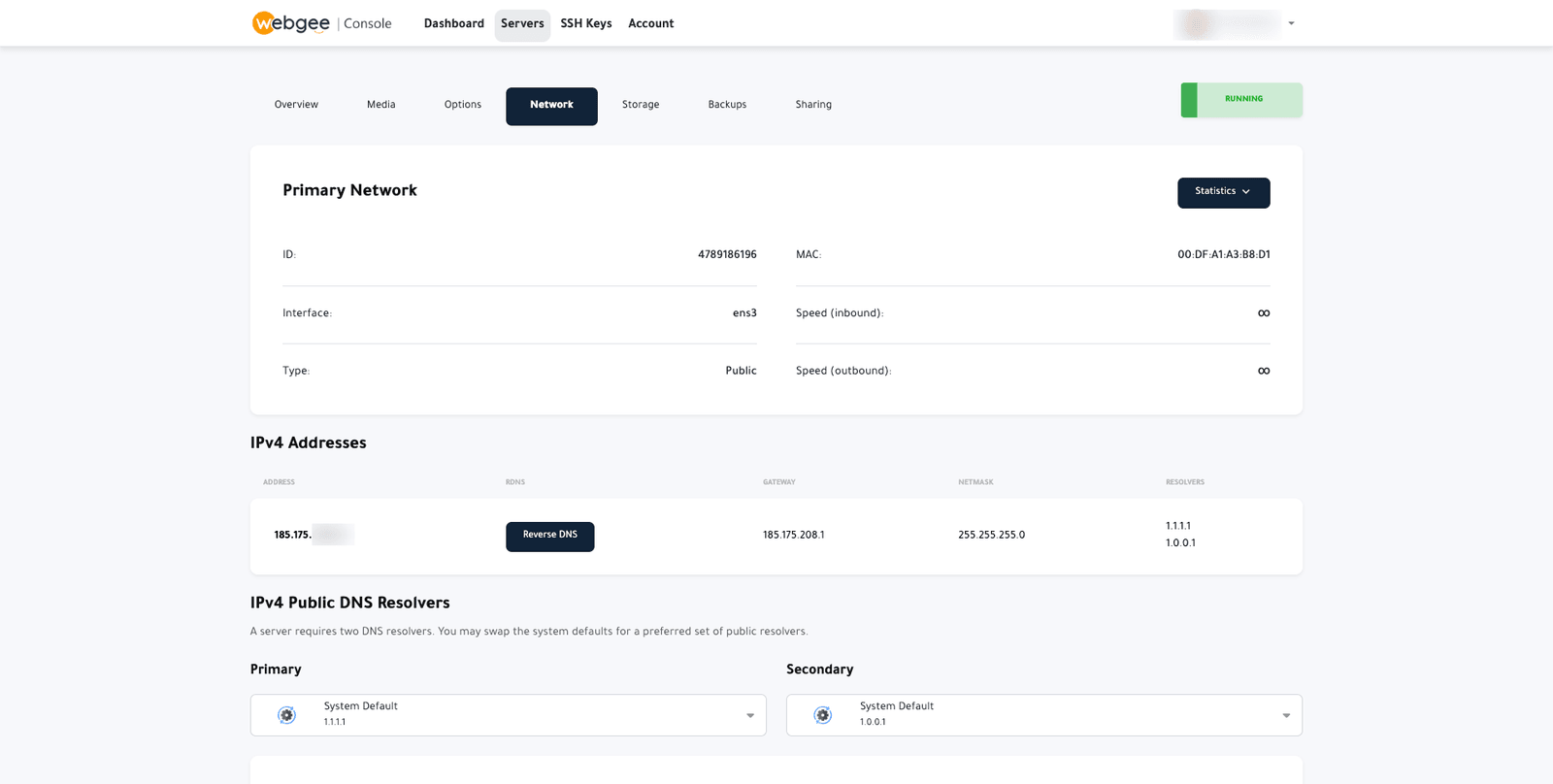
The Network tab shows the interface, MAC address, IPv4 addresses with their gateway and netmask, and the DNS resolvers (Cloudflare's 1.1.1.1 and 1.0.0.1 by default). The button that matters most is Reverse DNS. Set it to the server's fully qualified hostname, with a matching A record, before the server sends any email. Missing reverse DNS is the most common reason mail from a new server goes nowhere. See Networking and reverse DNS.
Share access without sharing your account
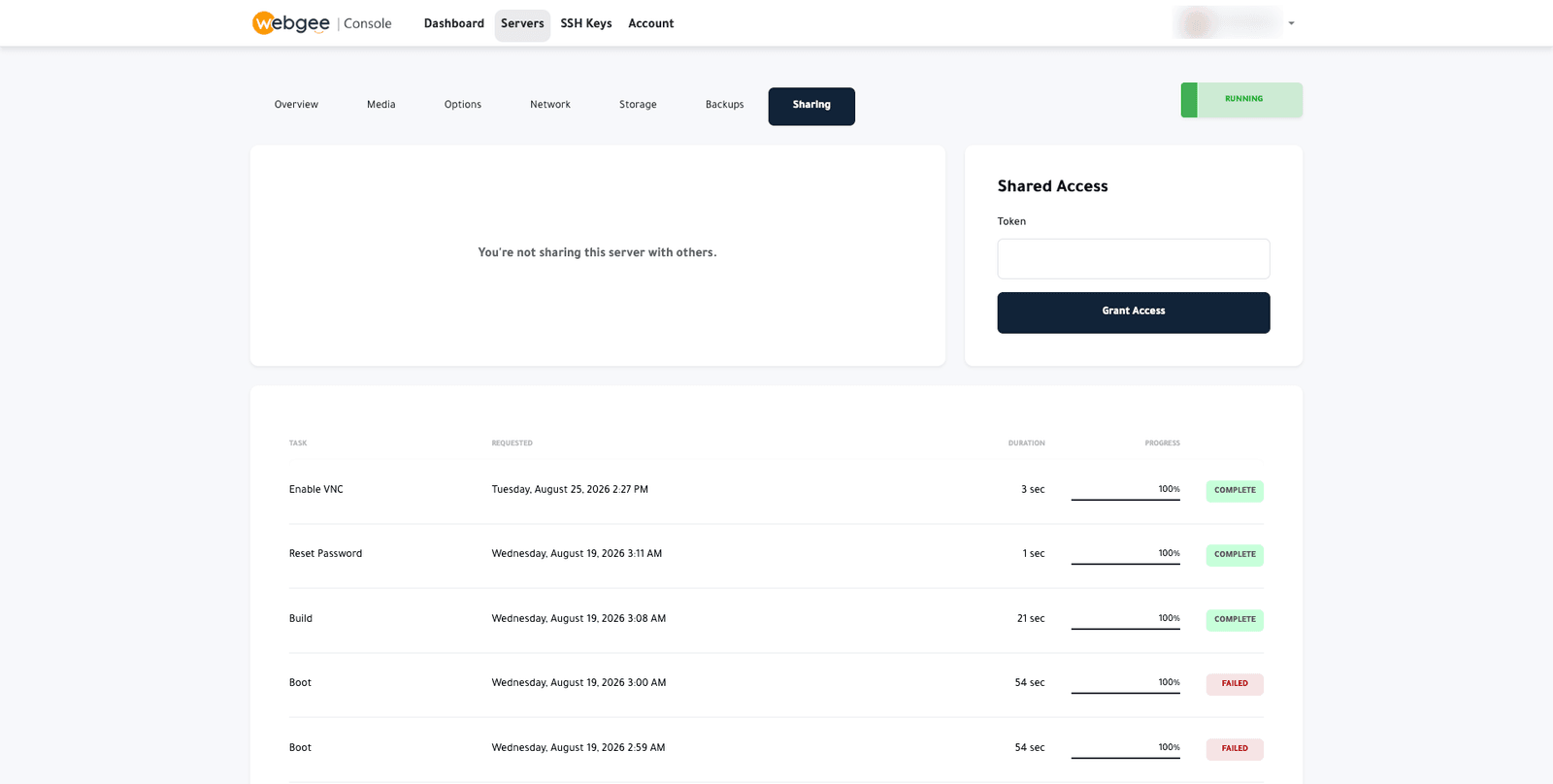
If a developer or agency needs to work on one server, the Sharing tab lets you grant access with their Cloud Console sharing token. They see only that server, not your billing or other services, and you can revoke access at any time. Shared access includes destructive controls such as rebuild and restore, so share only with people you trust with them. Revoking console access does not remove SSH keys or passwords they set on the server itself, so rotate those too. See Share server access.
Making the call
The Cloud Console handles the platform side well: building, rebuilding, recovering, backing up and sharing. What it cannot do is decide to patch your server. That is the real difference between the two options.
- If you have the skills and the habit, an unmanaged KVM server gives you full root access, your own kernel and a capable console for everything else.
- If the server matters and nobody owns it, add management and let someone else handle OS updates, hardening and the routine questions.
- If your team needs pipelines, infrastructure as code and on-call cover, look at DevOps as a Service instead.
You can also start unmanaged and add help later. The jobs that stay yours either way, backups, reverse DNS and SSH keys, are worth setting up on day one.
Frequently asked questions
Are WebGee cloud servers managed or unmanaged?
Unmanaged by default. WebGee looks after the network, the infrastructure and the Cloud Console. The operating system, updates, security hardening and installed software are your responsibility unless you add management.
What does the managed add-on include?
24/7/365 technical support for the server, operating system updates, security hardening, optional proactive monitoring of services, and up to 3 hours of technical assistance or consultation per month. Larger projects such as migrations are quoted separately.
Can WebGee support log in to my unmanaged server?
Only if you ask. WebGee does not access an unmanaged server without your explicit request. You can install a temporary support SSH key for a ticket and remove it when the work is done.
Do I still need to set up backups on a managed server?
Yes. Backups, reverse DNS and SSH keys are yours to set up either way. Configure Cloud Console backups and keep a copy of critical data off the server.
How long does it take to deploy a cloud server?
A couple of minutes from opening the Cloud Console. The operating system installation itself usually completes in under 20 seconds.
