

Every website owner eventually deletes the wrong folder, installs an update that breaks the checkout, or finds a hacked file in the theme directory. These things are routine. What turns them into a bad week is not having a clean copy to go back to, or not knowing how to use the one you have.
On WebGee cPanel hosting, backups run automatically with JetBackup 5, and you can restore from them yourself in cPanel without opening a ticket. This guide explains what is backed up and what is not, then walks through the restores you are most likely to need: a single file or folder, a database or a whole account, a snapshot before a risky change, and a copy you download and keep.
Key takeaways
- WebGee backs up every cPanel account automatically with JetBackup, daily or hourly depending on the plan.
- Archives, plugin backup files, .sql dumps and media files are excluded from the daily backups.
- Restore only what you need, a folder or a single database, rather than the whole account.
- Take an on-demand snapshot before a risky change; it is kept for two days and needs an account under roughly 5 GB.
- Keep an extra copy off the server with a downloaded backup or WebGee Backup Storage.
Why restores matter more than backups
A backup is only useful if you can get the right thing back quickly. Most real incidents fall into a few patterns:
- Human error. A file deleted in File Manager, a wrong edit to
wp-config.php, a table dropped in phpMyAdmin. - Bad updates. A plugin, theme or core update that leaves the site showing errors or a blank page.
- Compromised sites. Injected code in theme files or a database full of spam, where going back to a clean point in time is often the fastest fix.
In almost every case you do not want to roll back the entire account. You want one folder, one database, or one mailbox from before the problem started, and nothing else touched. JetBackup is built around that kind of selective restore.
How backups work on WebGee cPanel hosting
WebGee takes incremental backups of every shared and reseller account: daily, or hourly on some plans. Incremental means only what changed since the last run is stored, so backups are light on the server. The copies live outside your account, so they do not use your disk quota.
Our cPanel cloud hosting plans include free daily backups for 30 days, and the GeeBusiness plan adds external backups on top of the daily ones. How far back you can go depends on your plan's retention period.
A JetBackup backup covers:
- Website files in your home directory (apart from the excluded file types below)
- Databases, backed up directly rather than as
.sqlfiles - Email accounts and their contents
- cPanel settings, cron jobs and DNS zones
What is excluded from the daily backups
Some file types are skipped on purpose because they are very large, change constantly, or are copies of data that is already backed up:
- Archives:
.zip,.rar,.tar,.tar.gz,.gz,.7z,.iso - Backup files:
.bkup,.jpa,.sql,.wpress,.xen,.aesand files named likebackup-*.tar.gzor*_backup - Media:
.mp4,.mp3,.avi,.mpeg,.mkv,.divx - Executables and logs:
.exefiles, log files and rotated log archives
Plugin backups stored in your account are not backed up Backups made by WordPress plugins are usually .zip or .wpress files, which are excluded. A plugin backup saved inside your hosting account does not exist in the daily copies, and it uses your disk quota. Configure the plugin to store off-site instead. The same goes for loose .sql exports: your databases are backed up directly, a .sql file in your home directory is not.
The full list is in What is excluded from daily backups. Two related notes: Softaculous backups are disabled on WebGee shared and reseller hosting because they write full copies into your own quota, and cPanel's built-in File and Directory Restoration tool does not work on WebGee servers because backups are handled by JetBackup instead.
Restore specific files or your home directory
This is the restore you will use most. It brings back files without touching your databases, email or cPanel settings.
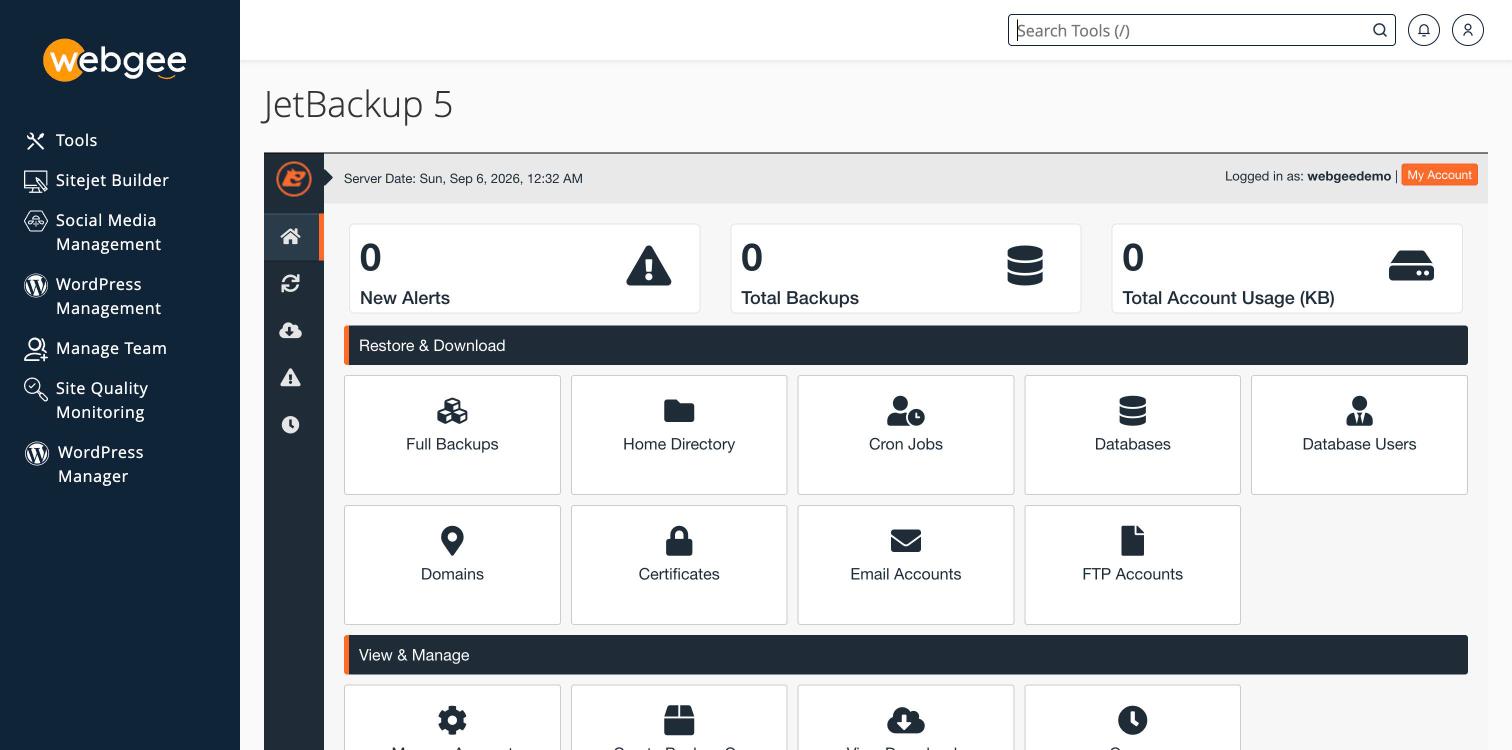
- In cPanel, open JetBackup 5.
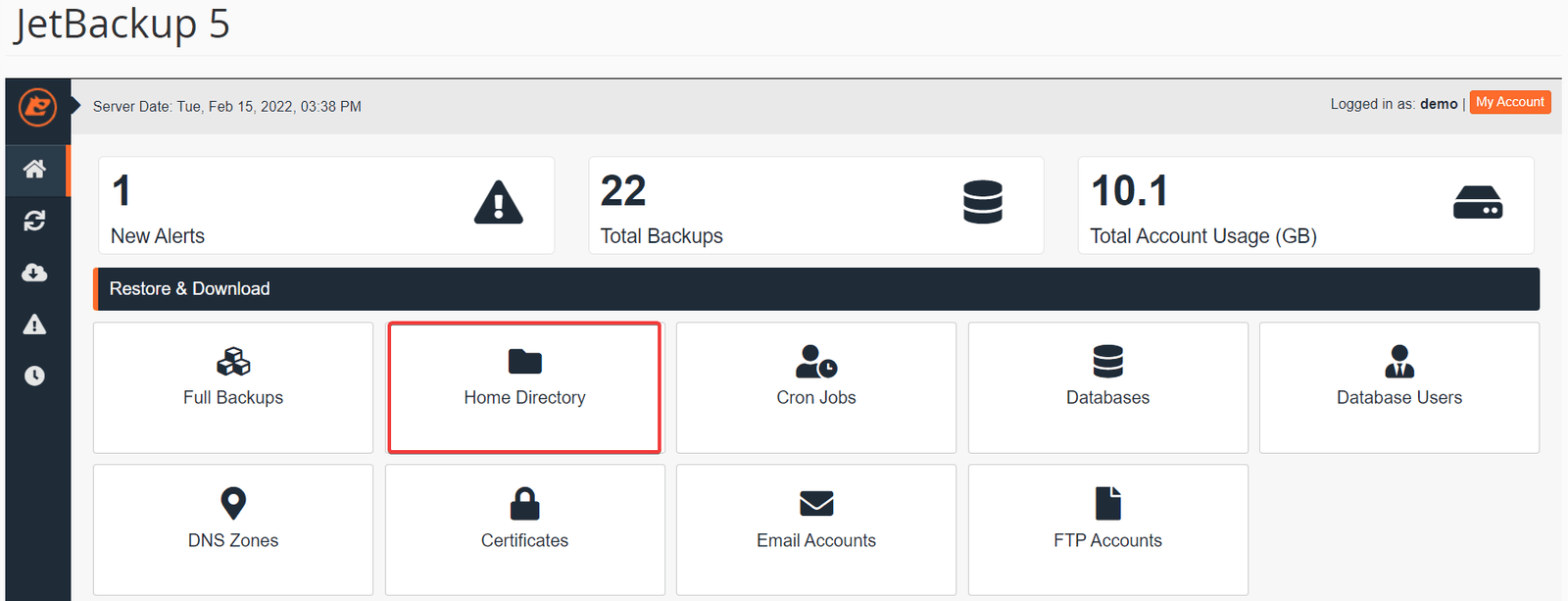
- Under Restore & Download, select Home Directory.
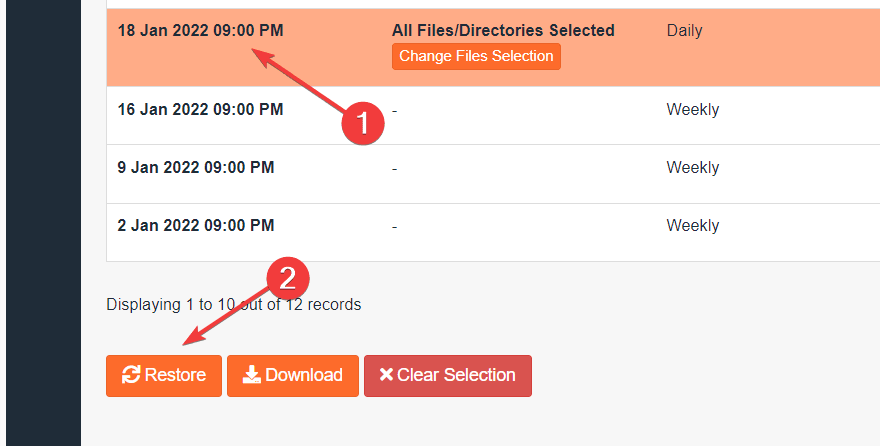
- Choose the backup date you want. By default all files and directories are selected; use Change Files Selection to pick just the file or folder you need. Then select Restore.
- On the Restore Summary, check what is listed under Items To Restore, then select Restore Selected Items.
- You are taken to the Queue page, where the job shows as in progress. When it reports complete, check the restored files in File Manager.
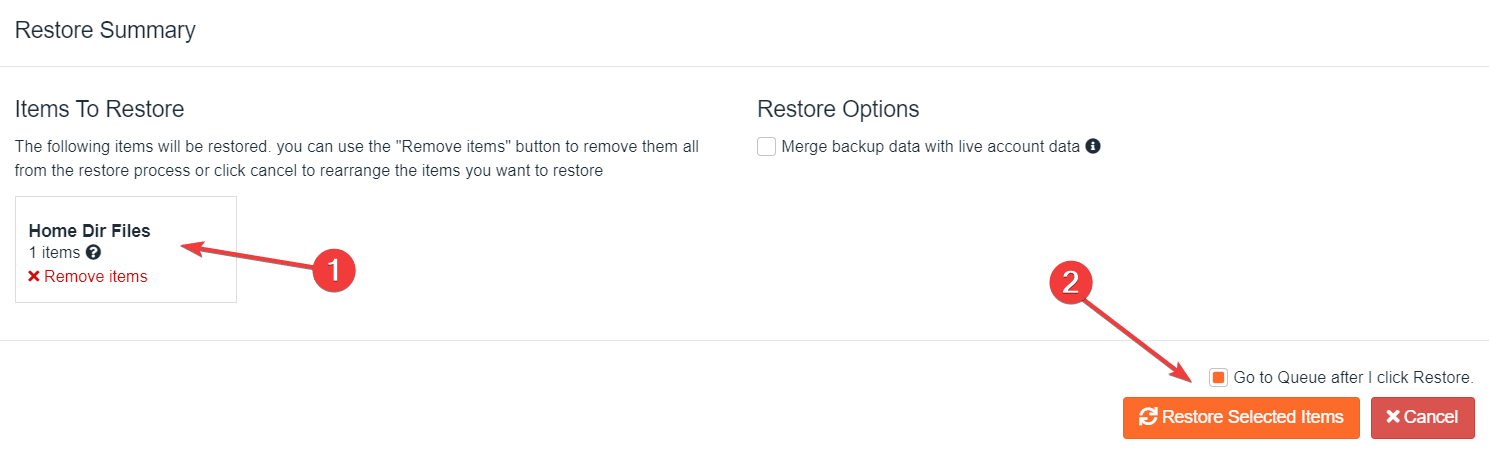
A home directory restore overwrites current files Restoring the whole home directory replaces current files with the backup's versions, so anything changed since that date is lost. To recover one file, browse into the backup and select only that file.
Not sure the backup contains what you expect? Use Download on the same screen instead. You get the files as an archive without changing anything on the account, which is handy for comparing versions. After restoring a WordPress site, clear your caching plugin or hard-refresh, because cached pages can make it look as though nothing changed. Full steps: Restore specific files or folders.
Restore a database or a whole account
When a bad import, a broken update or a hack has damaged the database, restore just that database. Use the Databases tile on the JetBackup home page, or go through Restore & Download:
- In cPanel, open JetBackup 5.
- Select Restore & Download in the left-hand menu, or the tile for what you need.
- Choose the backup date from the list.
- Either select Restore for a full restore of files, databases, email accounts and cPanel settings, or select Show Advanced Settings to pick exactly what to restore, such as a single database or a single email account.
- Review the summary and select Restore Selected Items, then watch the Queue until the job completes.
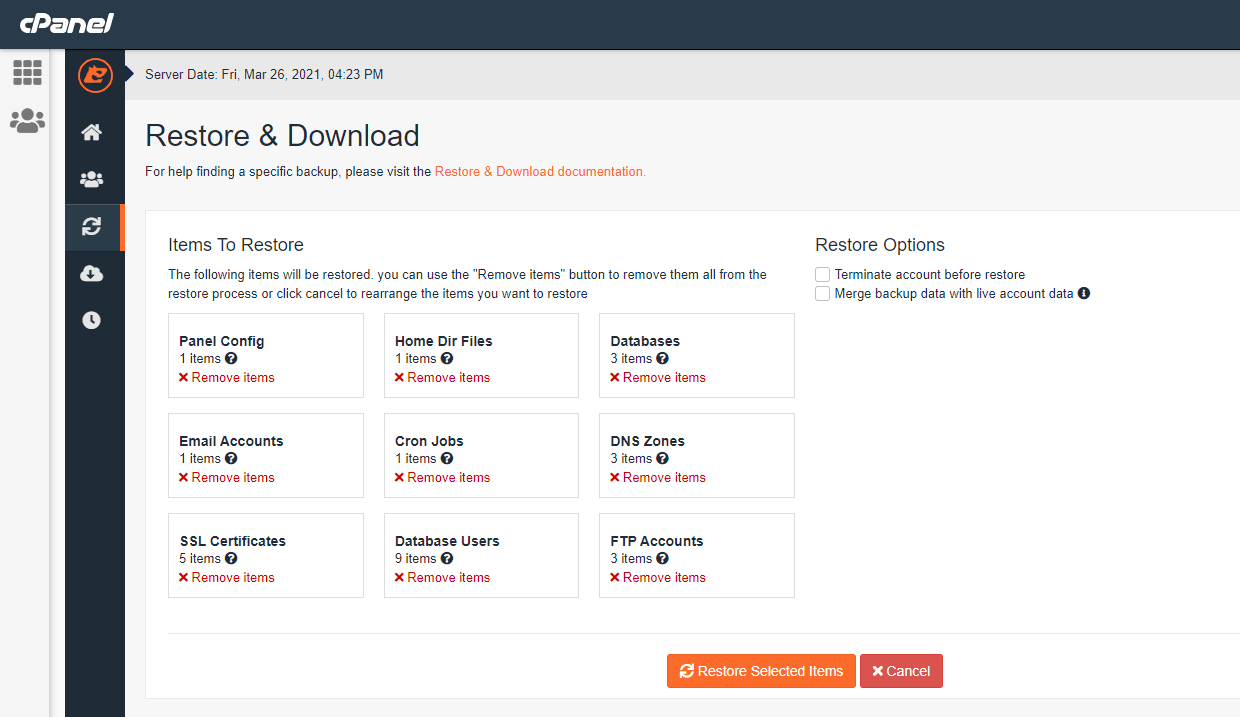
A partial restore is almost always the better choice. It is faster, and it does not roll back email accounts and cPanel settings, or overwrite unrelated changes you have made since.
Seeing a 500 error during a full restore is expected A full account restore terminates the account first and then recreates it from the backup, so your cPanel session stops being valid and JetBackup may show a 500 error. Leave the restore running, do not start a second one, wait for it to finish, then sign out of cPanel and back in.
If the backup date you need is not listed, it may be older than your plan's retention period, or the account may not have existed yet. See Restore from a backup and JetBackup shows a 500 error during a restore.
Take a snapshot before a risky change
Daily backups protect you against everyday accidents. A snapshot is for the moment just before you change something big, such as a major plugin update, a theme switch or a database migration, so your restore point is minutes old rather than hours.
Know the limits before you rely on one:
- One snapshot per cPanel account. Taking a second removes the first.
- Kept for two days, then deleted automatically.
- Not available on large accounts, roughly over 5 GB or with a very high inode count. On those accounts the option is hidden; use a plugin or script to make an on-demand backup instead.
To take one:
- In cPanel, open JetBackup 5 and select Accounts.
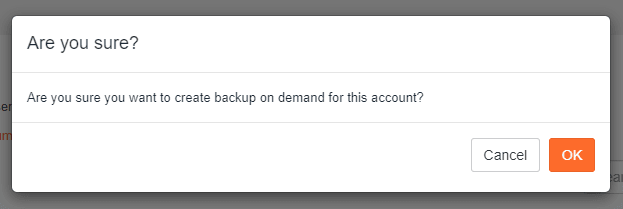
- Select your account, then choose Create Backup on Demand.
- Confirm when prompted.
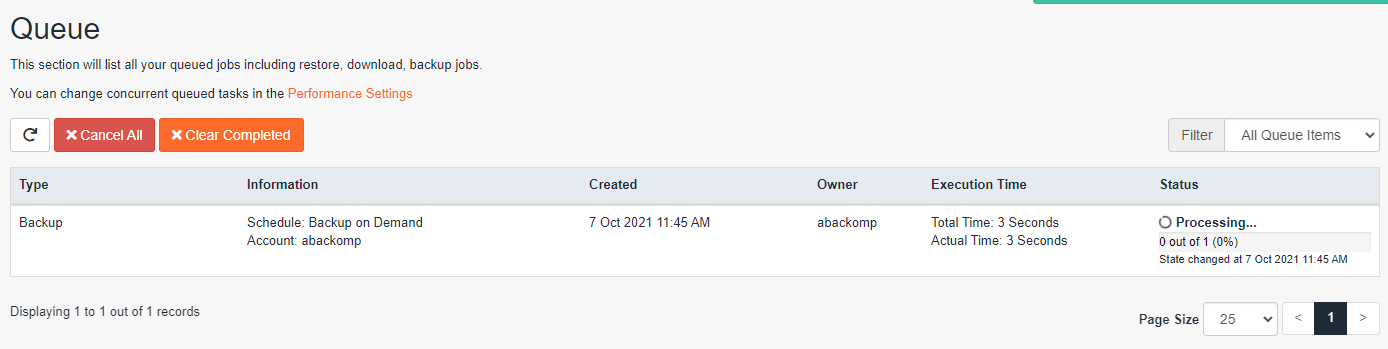
- Open Queue and wait for the backup to report complete. Do not start your change until it has finished. Small sites usually take a minute or two.
If the change goes wrong, restore from the snapshot the same way you restore any other backup. Full reference: Take a snapshot backup.
Before a risky update
- Check cPanel Disk Usage: snapshots are unavailable on accounts over roughly 5 GB
- Create Backup on Demand in JetBackup 5 and wait for the Queue to show complete
- Make the change and test the key pages, forms and checkout
- If something broke, restore only the affected files or database
- Clear your cache after restoring, then test again
Download a backup you keep yourself
JetBackup and snapshots live on WebGee's infrastructure alongside your account. For anything you cannot afford to lose, keep a copy somewhere else too, and take one before a migration away or a major change.
- In cPanel, open Backup under Files (or use the Backup Wizard).
- Select Download a Full Website Backup.
- Choose Home Directory as the destination and select Generate Backup.
- cPanel emails you when the archive is ready. Download it from the same page, then delete the archive from your account.
A full backup contains your files, databases, email accounts and their contents, mail filters and forwarders, and cPanel settings. It is written into your own disk quota while it is generated, so check Disk Usage first if you are close to your limit. To confirm it worked, open the archive and look for a homedir folder and a mysql folder with a .sql file per database. An archive of only a few kilobytes means generation failed.
Partial backups of the home directory, a single database, or email forwarders and filters download immediately. To restore onto the same account, use JetBackup rather than uploading the archive, as it is faster. See Download a backup of your account.
Keep an extra copy off-site with WebGee Backup Storage
A backup stored on the same server as the site protects against fewer failures than one stored elsewhere. WebGee Backup Storage gives you a dedicated storage box, separate from your hosting server, that you can use as that off-site destination.
- Access over FTP, SFTP, SCP, SMB/CIFS, NFS, WebDAV, rsync and BorgBackup
- Compatible with BorgBackup and Restic for deduplicated, compressed and encrypted repositories
- Automated point-in-time snapshots you can restore from your control panel
- Plans from 250 GB to 20 TB, billed monthly with no setup fee
It suits plugin backups configured to store off-site, downloaded account archives, and media libraries or archives that the daily backups exclude.
On WordPress Cloud instead?
WordPress Cloud has its own backup tools rather than JetBackup. Open a website and select Backups to create a backup with a note, restore the full website, or use Restore then Custom to pick individual files or databases. Backups cover the home directory and every database attached to the website. See Back up and restore a website.
Already hosting with us and want a copy that lives somewhere else? Add Backup Storage. Moving from another provider? Our team can handle the move with free website migration.
Frequently asked questions
How often are WebGee cPanel accounts backed up?
Every shared and reseller account is backed up incrementally by JetBackup, daily or hourly on some plans. The cPanel cloud hosting plans include free daily backups for 30 days.
Can I restore a single file without restoring my whole site?
Yes. In JetBackup 5, open Home Directory, choose a backup date, use Change Files Selection to pick the file or folder, and restore only that.
Why is my plugin's backup file missing from the restore?
Archive and backup file types such as .zip, .wpress and .sql are excluded from the daily backups. Store plugin backups off-site instead of inside your hosting account.
Why do I see a 500 error while a full account restore runs?
A full restore terminates and recreates the account, which invalidates your cPanel session. Let the restore finish, do not start another, then sign out and back in.
Why can't I see Create Backup on Demand?
Snapshots are not available on accounts over roughly 5 GB or with a very high inode count. Use a plugin or script to make an on-demand backup instead.
