

When a customer gets an invoice from [email protected], they have to take your word for who you are. When it comes from [email protected], the address does that work for you. A domain email address matches your website, carries your brand into every inbox and tells people the message really comes from your business.
WebGee offers more than one way to get there, and the right one depends on what your team needs besides mail. This guide explains the options as they are documented, helps you pick one, and then walks through setting up Premium Email step by step: DNS records, mailboxes, aliases, migrating existing mail and connecting mail apps.
Key takeaways
- An address on your own domain looks more trustworthy than a free webmail address.
- cPanel email suits sites hosted at WebGee; Premium Email suits businesses that only need email.
- Workspace adds shared calendars, files and video chat, and is not priced per user.
- Publish the DNS records first, then create mailboxes, migrate old mail and connect apps.
- Use aliases for role addresses and keep the Email Migrator syncing until after the MX cutover.
Why a domain email address is worth it
A free webmail address is fine for personal use. For a business, an address on your own domain has a few practical advantages:
- Trust. Recipients can see the address belongs to the same domain as your website, which makes your emails easier to recognise and harder to impersonate.
- Brand recognition. Every message you send repeats your company name.
- Control. The addresses belong to your business, not to an individual's personal account. When someone leaves, you decide what happens to their mail.
- Role addresses.
sales@,support@andbilling@can point at whoever handles them today, and move when that changes. - Authentication. On your own domain you can publish SPF, DKIM and DMARC records, which help receiving servers trust your mail.
Your options at WebGee
There are three documented ways to run email on your domain with WebGee. They share the same goal and differ in what comes with them.
1. Email included with cPanel hosting
If you already host a website with WebGee on shared, reseller or Premium hosting, you can create mailboxes on your domain in cPanel under Email Accounts, add forwarders for addresses that only redirect, and use webmail straight away. Mailboxes share the account's disk space, and the fair usage policy sets a combined maximum of 50 GB of mail per cPanel or DirectAdmin user. Good fit: a business whose website and email live together on one hosting account. See Create an email account.
2. Premium Email
Premium Email is standalone email hosting on your own domain. There is no cPanel and no website attached: you get mailboxes, aliases and the mail server, managed from a single page in your WebGee client area. That page covers mailboxes, per-mailbox quotas, aliases, storage, a DNS guide with a built-in checker, an Email Migrator for importing old mail, and client setup instructions. Good fit: a domain registered elsewhere, a website hosted elsewhere, or a business that only needs email.
3. WebGee Workspace
Workspace is business email plus collaboration. Alongside webmail (with send later, snoozing, follow-ups and canned responses), it includes shared calendars, contact management, shared storage and team folders for files, and text, audio and video chat with screen sharing. It is not priced per user or per mailbox: each plan includes a total amount of storage and a maximum number of accounts, so adding a mailbox for a new starter does not change your bill. Good fit: a team that wants email, files and calls in one place. See What is WebGee Workspace?
Which option fits your team?
- You host your site with WebGee and need a few mailboxes: start with the email that is already in your cPanel hosting.
- You only need email, or your site lives somewhere else: Premium Email gives you professional addresses without paying for hosting you will not use.
- You want shared calendars, file sharing and video calls too: Workspace adds collaboration on top of email, with storage pooled across the plan.
On webgee.com, the Business Email plans bring CrossBox webmail, NextCloud file storage and audio and video calls, with tiers from 5 users and 30 GB of storage up to unlimited users and 2 TB. The Standard Email plans suit lighter needs, from 2 to 25 email accounts with webmail, email forwarding and free migration.
Already have mail somewhere else? You do not have to start from an empty inbox. Premium Email includes an Email Migrator that copies existing mail over IMAP, and WebGee also offers free migration if you would rather hand the move to the team.
Setting up Premium Email, step by step
Once your order is active, sign in to my.webgee.com, go to Services, then Premium Email, and select your domain. The Information tab is your email panel. The other tabs along the top (Change Password, Request Cancellation and Switch Billing Term) control the service itself, not your mailboxes.
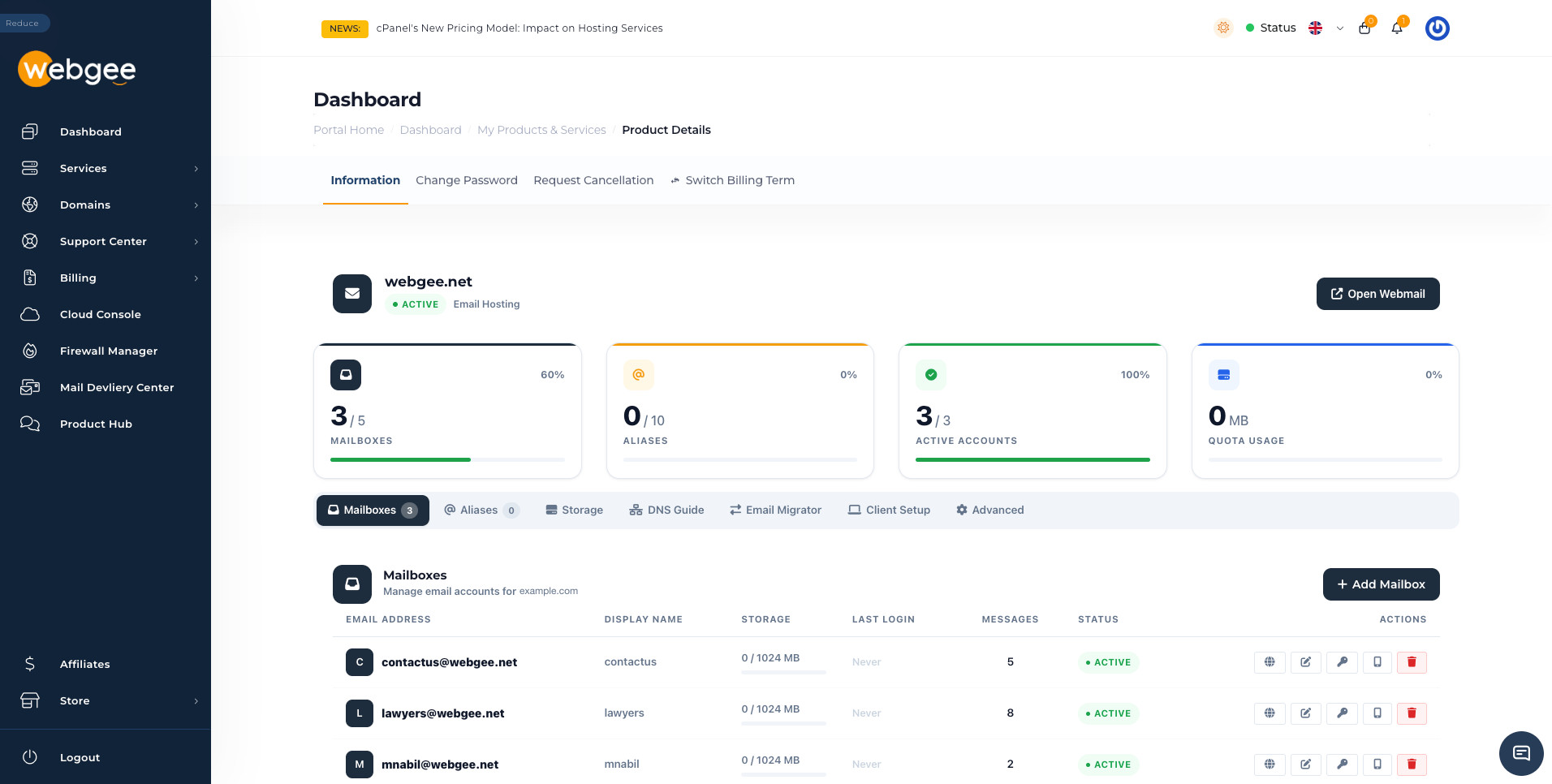
Four counters sit above the tabs: Mailboxes and Aliases against your plan's limits, Active Accounts (mailboxes currently enabled) and Quota Usage across every mailbox. If Mailboxes and Active Accounts differ, a mailbox has been disabled and mail to it is not being delivered.
The order of the next steps matters. Mail cannot reach a mailbox until DNS points your domain at WebGee, so publish the records first.
Step 1: Publish the DNS records
Open the DNS Guide tab. It lists every record your domain needs, ready to copy:
- MX routes your domain's mail to WebGee. It is the only record that decides whether mail arrives.
- SPF, DKIM and DMARC (TXT records) decide whether your mail is trusted once it does. The supplied DMARC record starts at
p=none, which reports without rejecting. - autoconfig and autodiscover (CNAME records) let Thunderbird and Outlook configure themselves from just an address and password.
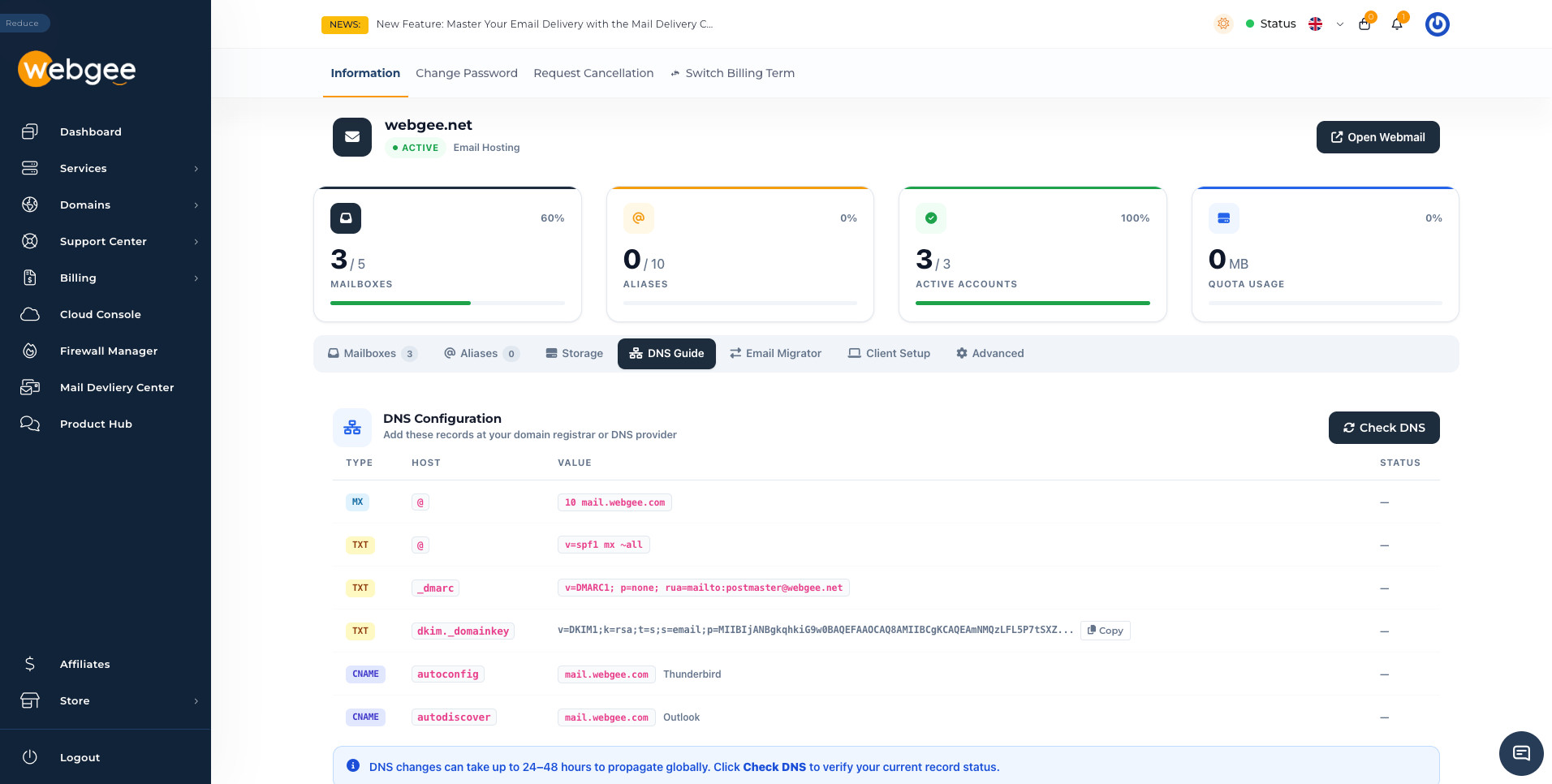
Add the records wherever your nameservers point: your registrar, a DNS host or Cloudflare. Adding them anywhere else does nothing. Use the Copy button for the long DKIM key rather than retyping it, and keep a single SPF record: if you also send through a newsletter platform or CRM, merge it into the same record instead of adding a second one. If the domain had mail elsewhere before, remove the old MX record.
DNS changes can take up to 24 to 48 hours to propagate. Select Check DNS to see WebGee's own view of your records. Full reference: DNS records for Premium Email.
Hosting on the same domain? The SPF record for Premium Email (v=spf1 mx ~all) is not the same as the one used for WebGee shared and reseller hosting. If the same domain also sends mail from a hosting account, ask support to confirm a combined record rather than publishing either one alone.
Step 2: Create your mailboxes
On the Mailboxes tab, select Add Mailbox. Enter the part of the address before the @, an optional display name (the sender name recipients see) and a password of at least 8 characters.
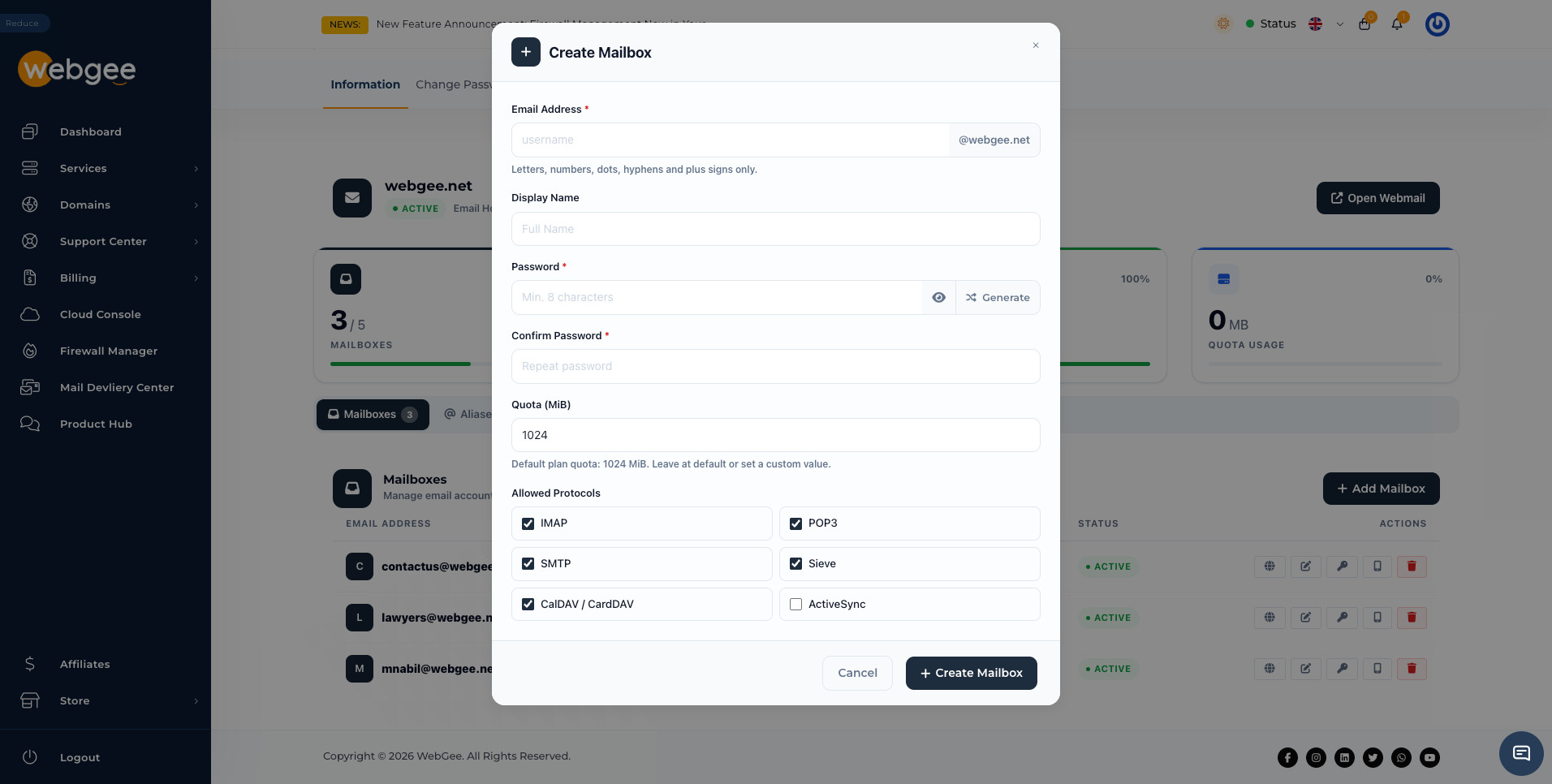
A few choices are worth thinking about:
- Password. Use Generate and copy the result before selecting Create Mailbox. You can set a new password later from the key icon, but you cannot retrieve the old one.
- Quota. Each mailbox gets the plan's default quota, and every mailbox draws from the same plan total. Leave the default unless a mailbox clearly needs more. The Storage tab shows total and per-mailbox usage.
- Protocols. IMAP, POP3, SMTP, Sieve and CalDAV/CardDAV are on by default; ActiveSync is off. Turning SMTP off makes a receive-only address, which suits something like
noreply@and means a stolen password cannot be used to send spam from your domain.
More detail: Manage mailboxes.
Step 3: Add aliases for role addresses
An alias receives mail and passes it straight on. It has no storage and no password, and it does not use up a mailbox from your plan. On the Aliases tab, select Add Alias, enter the alias address and where it should deliver. Separate several destinations with commas to send a copy to each.
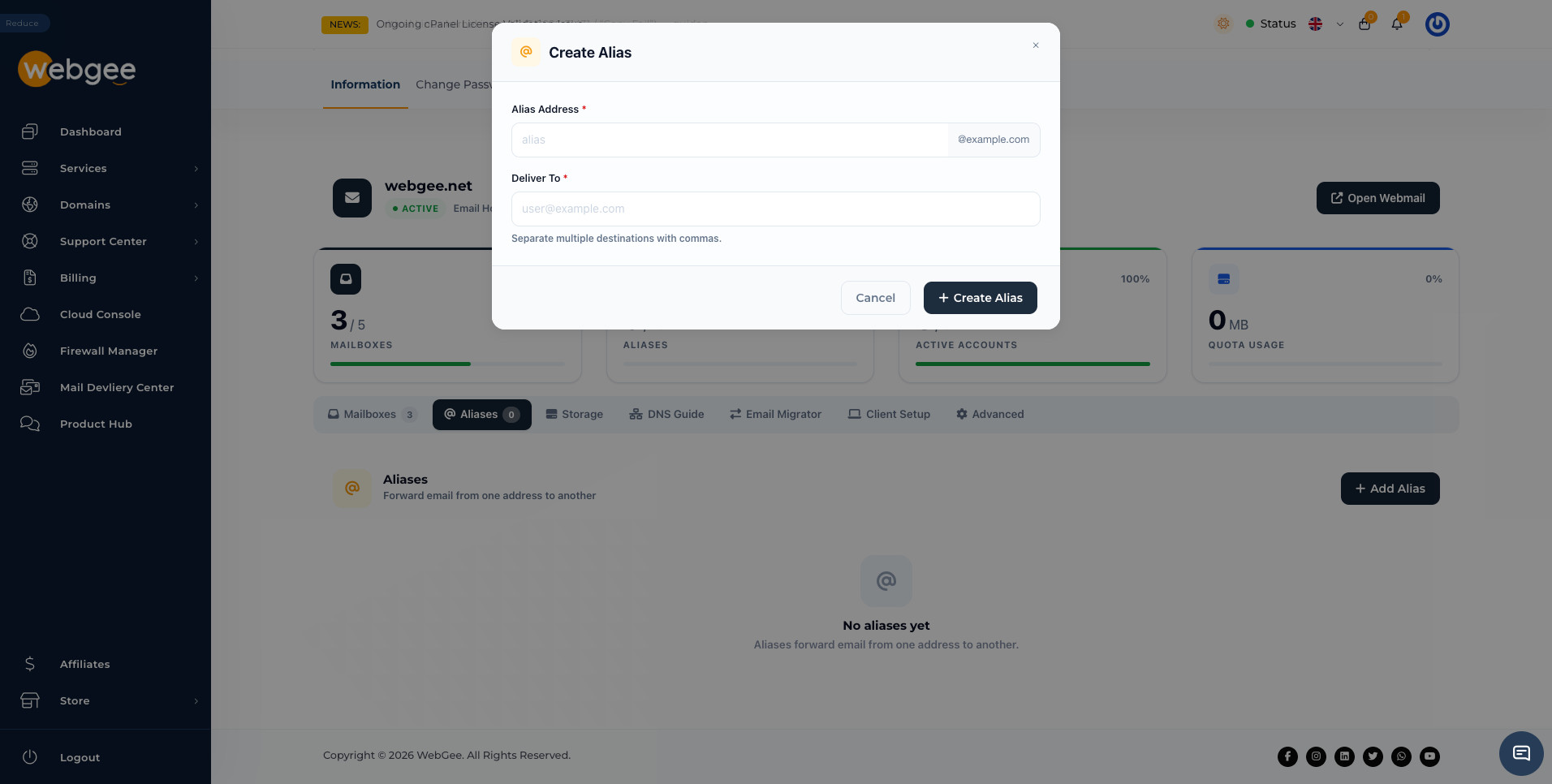
Aliases are ideal for sales@, support@ and info@, for pointing a departed colleague's address at their replacement, and for keeping an old address after a rename. Two things to know: an alias cannot send mail on its own, and forwarding a busy address to an outside provider such as Gmail can hurt deliverability, because the receiving provider sees WebGee as the sender of any spam that gets forwarded. For a high-volume address, a real mailbox is safer. See Aliases.
Step 4: Bring your existing mail across
If your addresses already exist at another provider, copy their mail in before you switch anyone over. The Email Migrator tab connects to your old provider over IMAP and syncs messages into a Premium Email mailbox, repeating at an interval you choose (60 minutes by default).
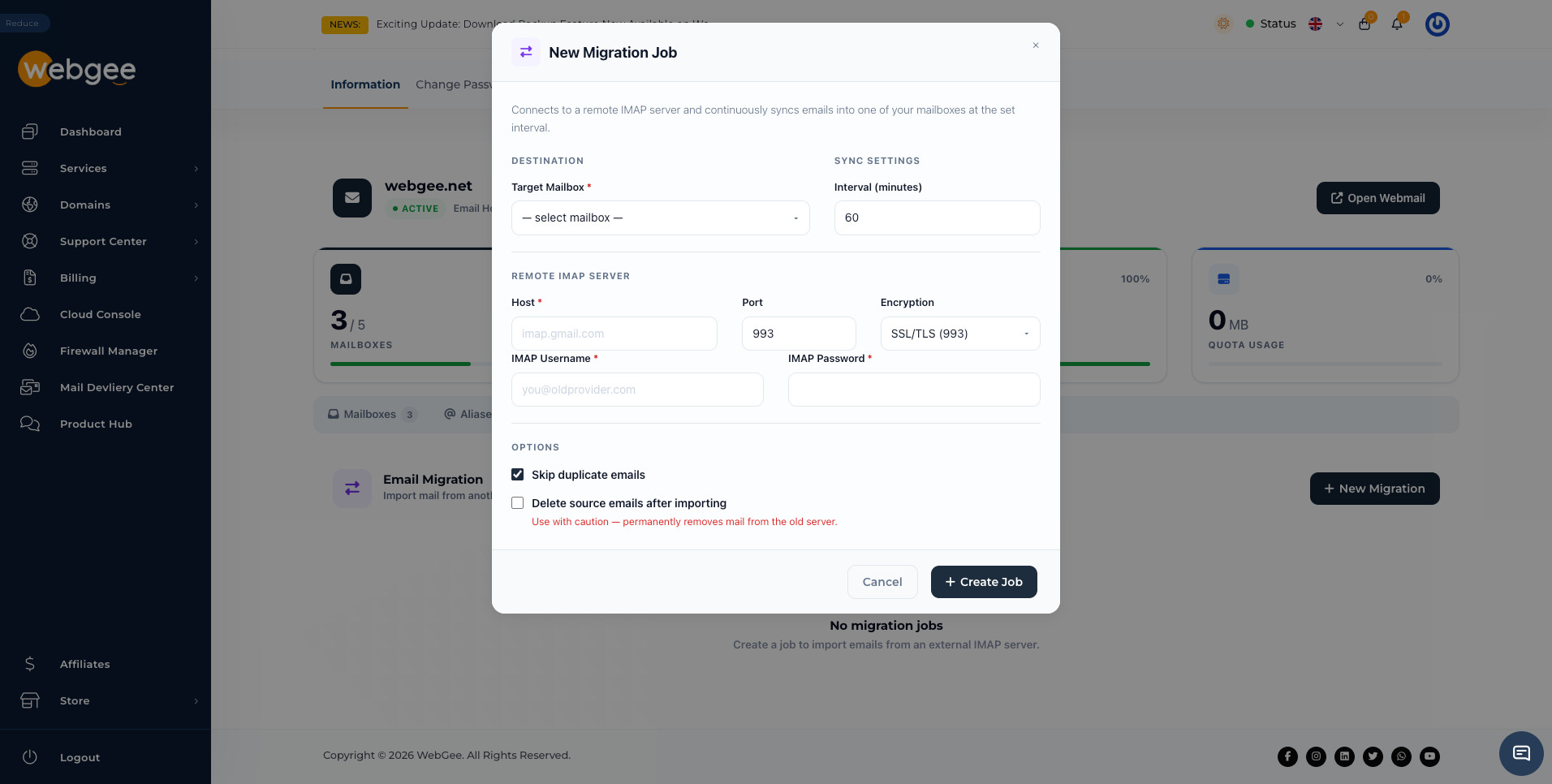
Create the destination mailbox first, then select New Migration and enter the target mailbox, the old provider's IMAP host (for example imap.gmail.com), port 993 with SSL/TLS, and the old mailbox's username and password. Many providers, Gmail and Outlook.com among them, require an app-specific password for IMAP.
Because the job repeats, the switch can be seamless:
- Create the job and let the first pass run.
- Keep using the old mailbox while it syncs.
- Change your MX record when it suits you.
- Let one more pass collect anything that arrived just before the cutover, then delete the job.
Keep Skip duplicate emails on so each pass copies only what is new. Leave Delete source emails after importing off: verify everything arrived first, then clear the old mailbox yourself. Full guide: Import mail from another provider.
Step 5: Connect your mail apps and test
The Client Setup tab shows the connection settings with copy buttons, plus walkthroughs for Microsoft Outlook, Mozilla Thunderbird and Apple Mail.
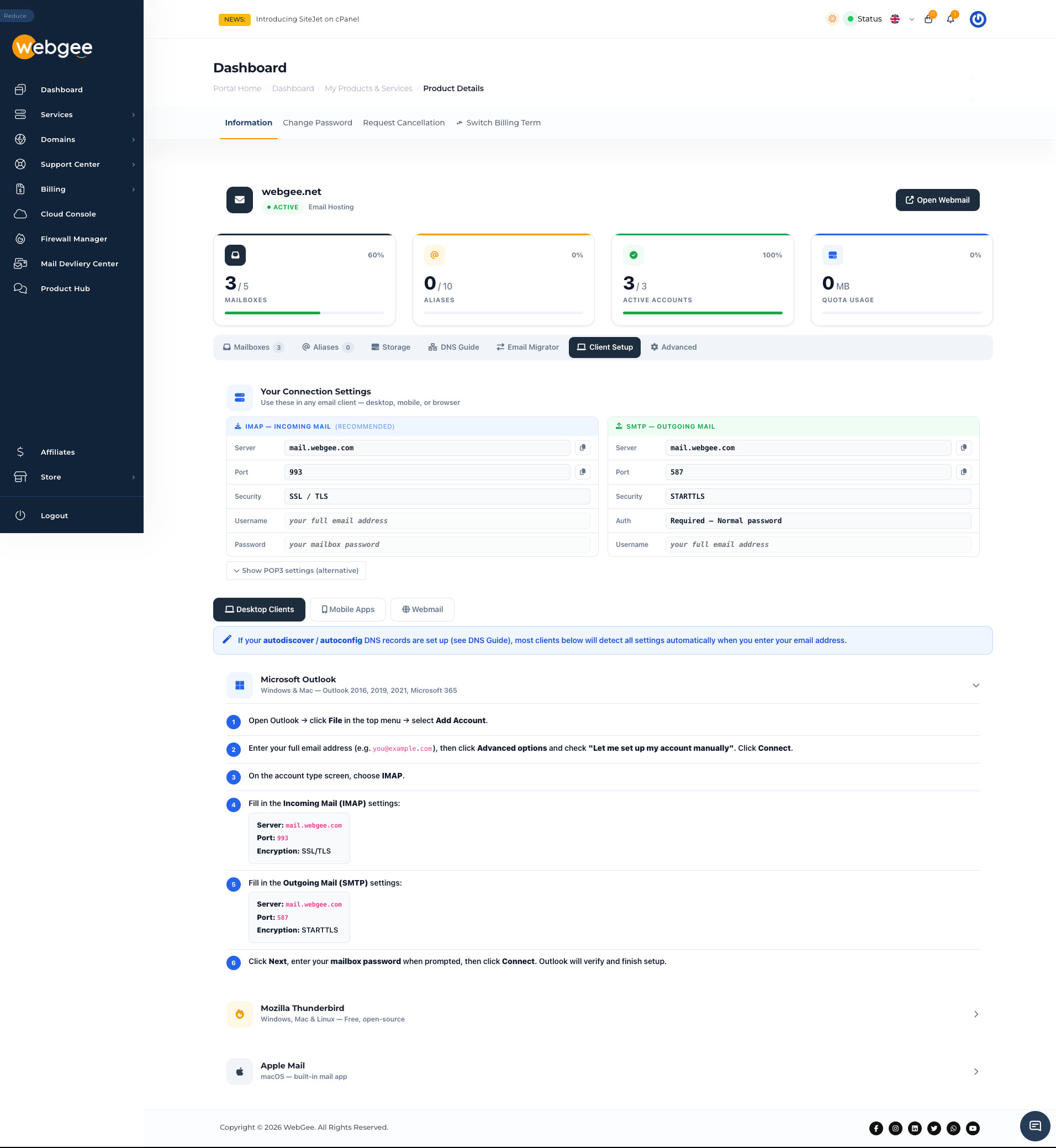
Incoming mail uses IMAP on mail.webgee.com, port 993, SSL/TLS. Outgoing mail uses SMTP on mail.webgee.com, port 587, STARTTLS, with authentication required. The username is always the full email address; entering only the part before the @ is the most common reason an app reports a wrong password. If the autoconfig and autodiscover records are live, most apps need only the address and password.
Before telling the team to switch, use Open Webmail to sign in as a new mailbox, send a message to an outside address, and reply to it. Mail working in both directions means MX and SPF are right. See Connect your mail app.
Premium Email launch checklist
- MX, SPF, DKIM, DMARC and both CNAME records published where your nameservers point
- Check DNS shows the records WebGee can see
- One mailbox per person, with passwords generated and saved
- Aliases created for sales@, support@ and other role addresses
- Old mail synced with the Email Migrator before the MX cutover
- Mail apps connected using the full email address as the username
- Test message sent and received in both directions
Deliverability basics
Good DNS records are most of the work. SPF says which servers may send as your domain, DKIM signs each message so receivers can verify it, and DMARC tells them what to do when a check fails. If you want the full explanation, read our guide Why your emails land in spam. To track what happens to mail after it leaves, see our introduction to the Mail Delivery Center.
Two more habits keep mail flowing. Outbound mail is limited per domain per hour, and everything the account sends counts, including contact forms and order confirmations. And WebGee's mail facilities must not be used for marketing campaigns: use a dedicated email marketing service for newsletters.
Hourly limits per domain, from the docs:
- 150 messages: cPanel and DirectAdmin Reseller, Infinity, Infinity+ and Premium Hosting Pro
- 250 messages: WebGee Workspace, Premium Hosting Business and Premium Reseller
- 350 messages: Premium Hosting Enterprise
- 500 messages: Premium Hosting Platinum
There is no daily limit, and there is a 25% overage buffer: messages above the hourly threshold are queued rather than rejected, up to that margin. Full detail: Email sending limits.
Get professional email on your domain
Whether you need a couple of mailboxes or a full workspace for your team, WebGee gives you addresses on your own domain with the DNS records, migration tools and client setup guides to get them running properly. Moving from another provider? Ask about free migration and we will help you move your mail.
Frequently asked questions
What is the difference between Premium Email and email with cPanel hosting?
Email with cPanel hosting lives on your hosting account and shares its disk space. Premium Email is standalone email hosting on your domain with no cPanel or website attached, managed from a single page in your WebGee client area.
Is WebGee Workspace priced per user?
No. Each Workspace plan includes a total amount of storage and a maximum number of accounts, so adding a mailbox for a new starter does not change your bill.
Can I keep my website with another host and use WebGee for email?
Yes. Premium Email is designed for that case: a domain registered elsewhere, a site hosted elsewhere, or a business that only needs email. You publish the records from the DNS Guide wherever your nameservers point.
Will I lose my existing emails when I switch?
Not if you migrate first. The Email Migrator copies mail from your old provider over IMAP on a repeating schedule, so you can keep it running until after you change your MX record. WebGee also offers free migration.
Do aliases count against my mailbox limit?
No. An alias has no storage or password and does not use a mailbox from your plan, but it cannot send mail on its own. Use a mailbox for any address that needs to send.

Working behind the scenes to keep websites fast, secure, and reliable. Interested in Linux, server administration, and the infrastructure that powers the web.